Users can access and use a LogPoint system. Every user is a part of a user group. You can create users, assign them to user groups, activate/deactivate them and change their passwords.
Users are granted LogPoint and SOAR permissions specific to the user group they are assigned to.
The credentials for a default user in LogPoint are:
Username: admin

Password: changeme
Users
You have to create a user group before adding a user. Refer to User Groups section for details.
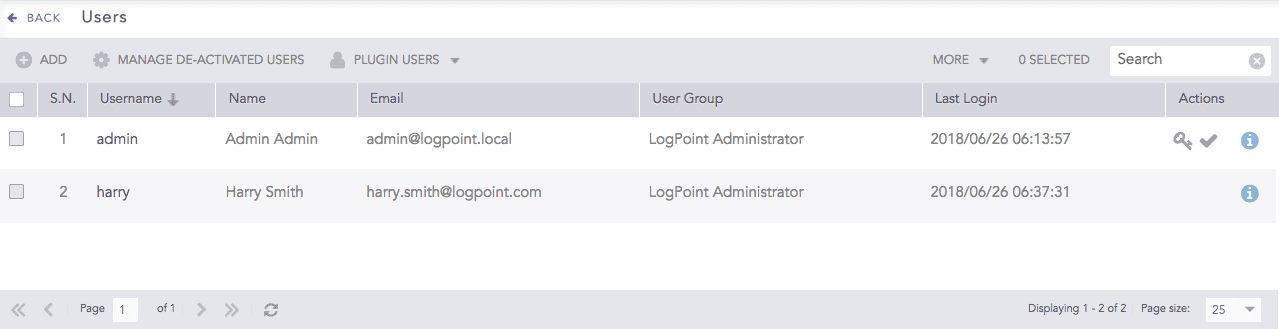
Go to Settings >> User Accounts from the navigation bar and click Users.
Users
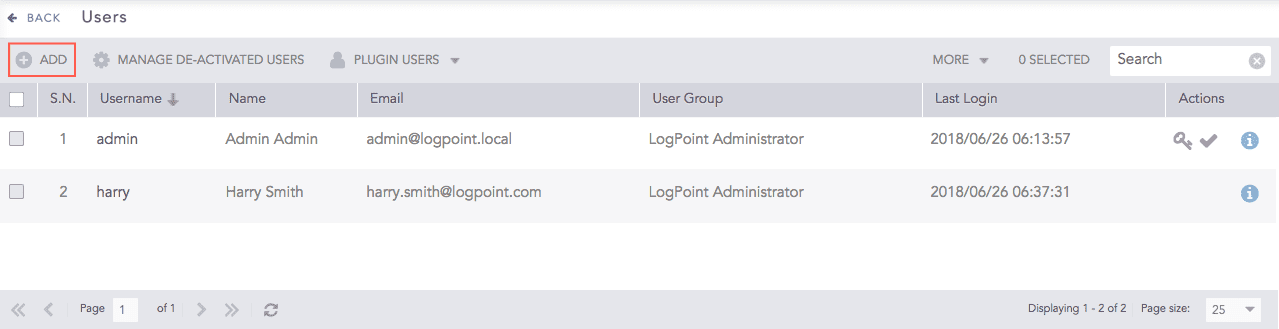
Click Add.
Adding a User
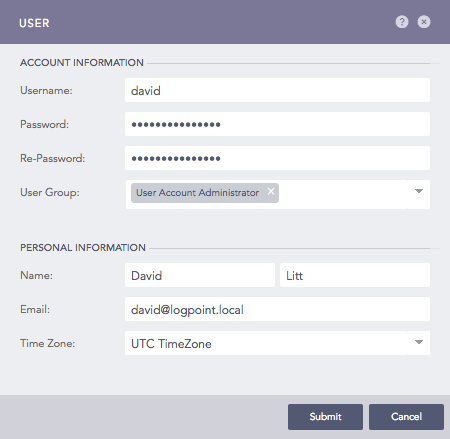
Enter a Username.
Enter a Password and re-enter it.
Select a User Group. You can associate a user with multiple user groups.
Enter the Name, Email, and Time Zone of the user.
Note
The default time zone is the UTC.
Users can view collected logs according to their time zone. If a user works in Denmark and wants to view the logs collected in England, the user can view those logs in the Danish time zone.
Click Submit.
Note
Click ? in the top-right corner for help.
You can edit user related information like Username, User Group, Email and Time Zone.
Go to Settings >> User Accounts from the navigation bar and click Users.
Click the user you want to edit.

Editing a user
Update the information.
Note
You canot edit the Username of a user.
Click Submit.
Go to Settings >> User Accounts from the navigation bar and click Users.
Click the Change Password icon from the Actions column.

Changing the Password
Enter the New Password and re-enter it.
Click Submit.
A deactivated user remains in the system (as opposed to deleted) but cannot access the system.
Go to Settings >> User Accounts from the navigation bar and click Users.
Click the De-Activate User icon from the Actions column.

Deactivating a User
Click Yes.
Enter your credentials and click Ok.
You must deactivate a user before deleting them.
Go to Settings >> User Accounts from the navigation bar and click Users.
Click Manage De-Activated Users.
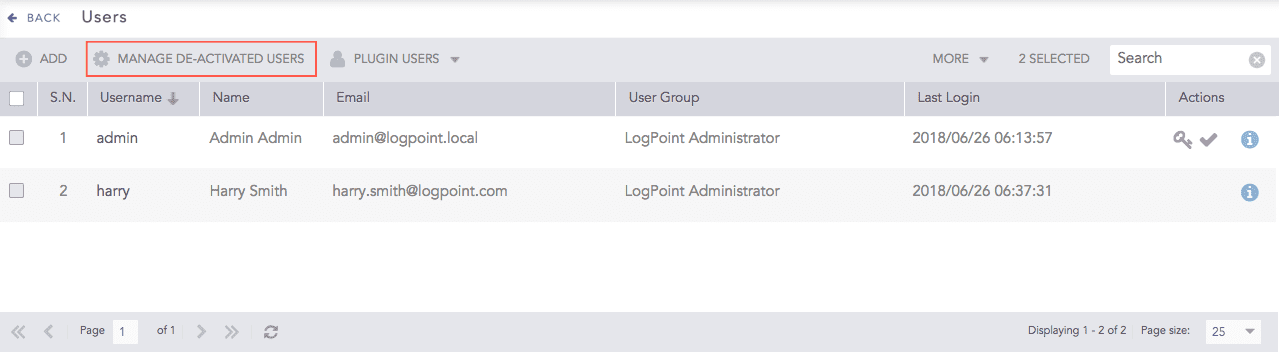
Deactivated Users
Note
When deleting the owner of a shared dashboard, alert rule, report template, or search template, you must delete the shared entity or transfer its ownership to another user. You can do this from the Transfer Ownership panel when you delete the user. Refer to the following pages for details:
Click the Delete icon from the Actions column.

Deleting a User
To delete multiple users, select the users, click the More drop-down, and select Delete Selected.
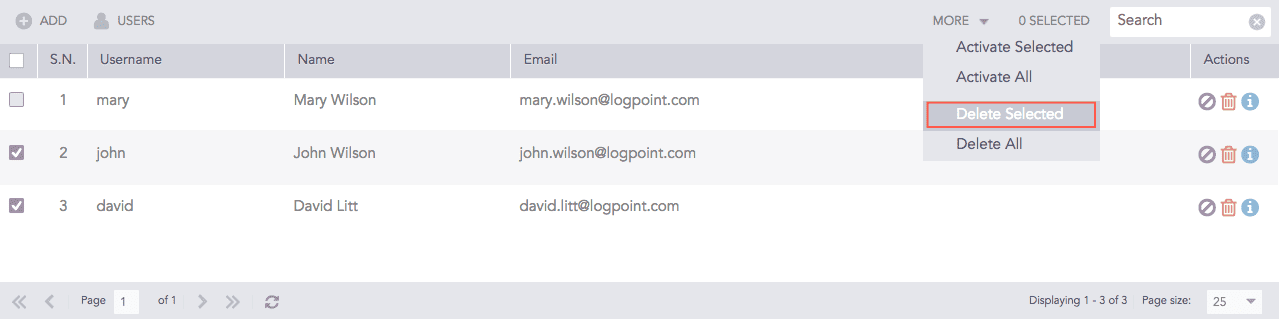
Deleting Multiple Users
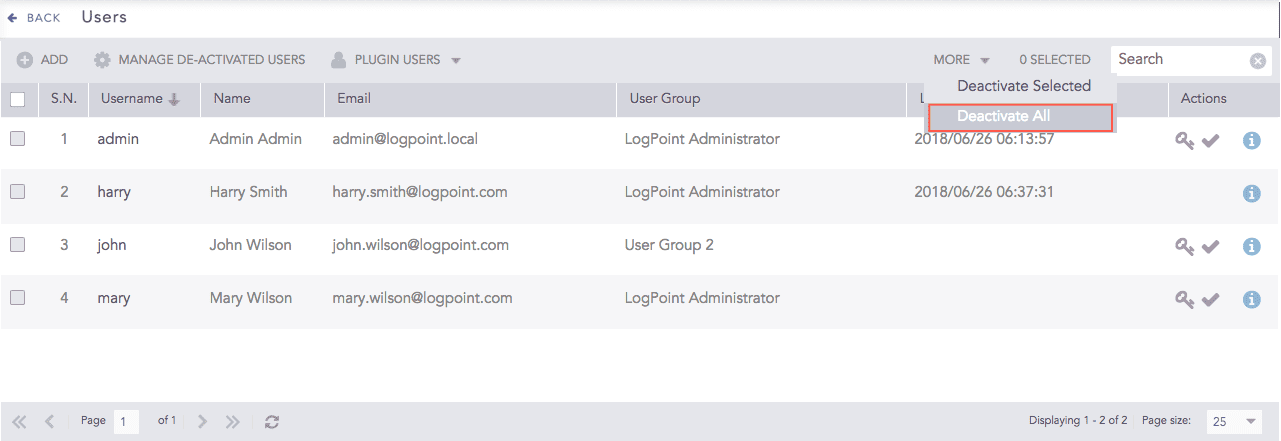
To delete all the users, click the More drop-down and select Delete All.
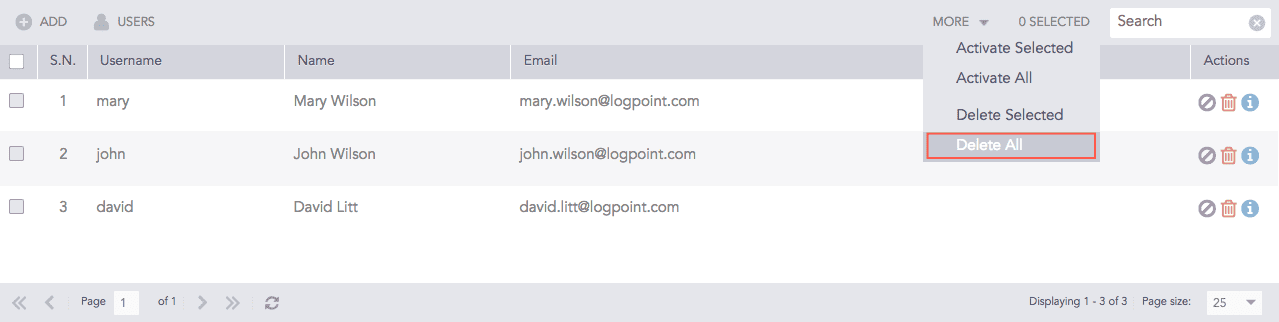
Deleting All Users
Note
Click the Activate icon from the Actions column to activate a user.
Click yes to confirm.
Plugin Users use plugins to authenticate and use LogPoint. There are two default authentication mechanisms in LogPoint:
LogPoint
LDAP (uses LDAP Authentication plugin)
You can also use the following authentication plugins:
Radius Authentication Plugin
ADFS Authentication Plugin
SAML Authentication
OAuth Authentication
To view the plugin users, go to Settings >> User Accounts from the navigation bar, click Users, select the Plugin Users drop-down, and select the required authentication plugin.
A deactivated user cannot access the system.
Go to Settings >> User Accounts from the navigation bar and click Users.
Click the Plugin Users drop-down and select the user’s authentication plugin.

Plugin Users
Click the De-Activate User icon from the Actions column.
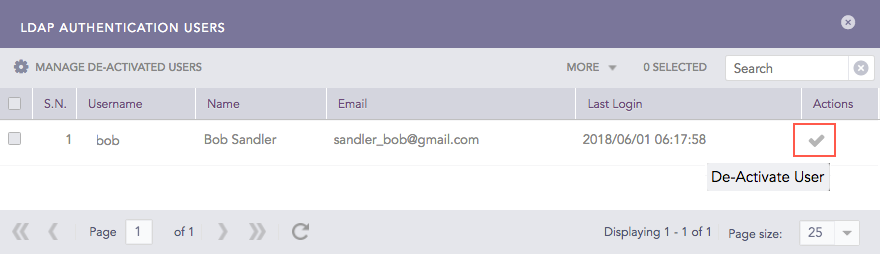
Deactivating a Plugin User
Click Yes.
Enter your credentials and click Ok.
You must deactivate a user before deleting them.
Go to Settings >> User Accounts from the navigation bar and click Users.
Click the Plugin Users drop-down and select the user’s authentication plugin.
Plugin Users
Click Manage De-Activated Users.
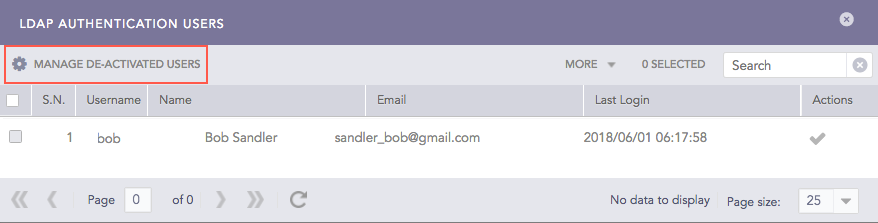
Managing the Deactivated Plugin Users
Click the Delete icon from the Action column.
Deleting a Plugin User
Note
Click the Activate icon from the Actions column to activate a user.
Click Yes to confirm.